To avoid these ads, REGISTER NOW!

Home-Shop Internet Netgear Router problems

Flail

Well-known member
Joined
Aug 5, 2016
Messages
412
Location
Kin folk said, “Californias the place you wanna be
So I have an in-the-house router, Netgear Nighthawk R9000. It works fine. I have just run outdoor Cat6 in 2” underground conduit a distance of 160’. I have plugged my Cat6 cable into my house R9000 router and then into a laptop in the shop. I have verified I have internet in the shop. Happy days.

So I have a spare Netgear Nighthawk R7000 router and want to set up wireless internet in the shop. My head now hurts. I have read the owners manual, spent hours futzing with configurations and am now more confused than usual.

I need setup information for the old, infirm and confused.

Can anyone help?

What do I need to configure in the house router?
Should this be done wirelessly or wired?
What do I need to configure in the shop router?
Should this be done wirelessly, wired directly to the internet or while plugged into the other router? R9000 LAN to R7000WAN?
Can the shop router (R7000) both function as a wireless access point and the ports act like wired accesses?

Can the two routers have the same names or should must they be different?
What about passwords?

What I need is the idiots guide to doing this in a step by step fashion.
Anyone point me in the right direction?
I’m about ready to pull the Cat 6 out and make a noose.
 
To avoid these ads, REGISTER NOW!

wyliesdiesels

Well-known member
Joined
Aug 14, 2012
Messages
20,004
Location
Modesto, CA
Ok this is fairly easy

You need to first do some programming on the R7000 with your laptop and not have anything else connected.

Set a static IP on the R7000 that is different than any other devices on your network and outside the DHCP range of the house router. Also make sure to turn off DHCP server on the R7000.

The username and password can be the same on both.

The SSID and password can be the same.

Next plug CAT6 from house into one of the LAN ports on the R7000.

Should be good to go.
 
OP
F

Flail

Well-known member
Joined
Aug 5, 2016
Messages
412
Location
Kin folk said, “Californias the place you wanna be
Thanks for the response.
So I tried this ^ a few (at least a dozen) times and the router just seemed to become inoperative.
Tried to use the setup menu to set it up as a WAP and it would also lockup.
Installed all the latest firmware upgrades and still no love.
Finally plugged the R7000’s internet port into a lan port of the house R9000 router and set it up as a new install after I did a hard reset of the R7000.
Lo and behold, it’s acting like a like a separate wireless access point.
No idea of why it’s working, but it’s now in my shop and I have wireless.
 
Last edited:

wyliesdiesels

Well-known member
Joined
Aug 14, 2012
Messages
20,004
Location
Modesto, CA
Yeah thats probably my fault. I shouldve said to reset it first as it wouldve had its old config still on it.

Glad you got it going.

If you set the SSID and password to the same as the house router you should be able to roam between them pretty seamlessly
 
OP
F

Flail

Well-known member
Joined
Aug 5, 2016
Messages
412
Location
Kin folk said, “Californias the place you wanna be
Follow up question:
In the house I am getting 110 mbs download and 11 mbs upload.
In the shop I am getting 30 mbs download and 10 mbs upload.

Is this because of signal degradation through 170’ of Cat6? Router not up to snuff? Wrong settings in shop router? I’m doing test on both house and shop wireless at 5G antennae and same distance from wireless antennae to laptop.
 

wyliesdiesels

Well-known member
Joined
Aug 14, 2012
Messages
20,004
Location
Modesto, CA
Do a wired speed test first

Next make sure APs in house are on a different channel than shop AP and also make sure no neighbors APs are on the same channel (almost impossible to do with 2.4Ghz)

Also make sure youre speed testing with the correct AP. You could be locked on the farther AP and thus getting crappier speed results
 

Showkey

"MEMBER EMERITUS"
Joined
Aug 9, 2014
Messages
8,638
Location
Wausau WI
Just the a few of the issues with multiple APs.

Been there done that.........the problems are endless with which AP is acquired.
Not to mention the settings of channel, 2.5 vs 5.

Start with a quality WiFi MESH system ...........solves all these issues.
Lower price, easy install 15 minutes, full speed and bandwidth at all locations.
Setting are automatic..........hand off is seamless.

Base and 2 satellites mesh covers 2 acres, three building with 200 Mbps ( same speed as the wired check at all location) . Home is two levels 4000sqft. Shop is 1000 sqft 100’ for the home. 30 devices connected to the WiFi. 4k streaming to 4 TVs. 5 WiFi security cameras. Phones, Ipads, computers etc.

Some guys love the tinkering............others just want it to work and be done.

Might be a dozen other threads on this topic.
 

Toomanytools?

Well-known member
Joined
Nov 4, 2010
Messages
855
Location
Washington
Just the a few of the issues with multiple APs.

...
Start with a quality WiFi MESH system ...........solves all these issues.
Lower price, easy install 15 minutes, full speed and bandwidth at all locations.
Setting are automatic..........hand off is seamless.

Base and 2 satellites mesh covers 2 acres, three building with 200 Mbps...

Some guys love the tinkering............others just want it to work and be done.

Might be a dozen other threads on this topic.

What Mesh system are you using?
 

Showkey

"MEMBER EMERITUS"
Joined
Aug 9, 2014
Messages
8,638
Location
Wausau WI
what mesh system are you using?

ORBI AC3000

NETGEAR Orbi Home Whole Home Mesh WiFi System - Tri-band WiFi Router. Up to 2,500sqft of WiFi Coverage, AC3000 (RBR50) ... TRI-BAND TECHNOLOGY - Unlike other WiFi sets that lose speed as you add devices, Orbi routers maintain data flow for your connected devices using a dedicated backhaul connection.

There are several other models available now. I got mine at Costco for under $300.

https://www.netgear.com/landings/wi...edium=cpc&utm_campaign=us-best-wifi6-srch-cpc
 
Last edited:

dogdog

Well-known member
Joined
Nov 15, 2011
Messages
12,711
Ok this is fairly easy

You need to first do some programming on the R7000 with your laptop and not have anything else connected.

Set a static IP on the R7000 that is different than any other devices on your network and outside the DHCP range of the house router. Also make sure to turn off DHCP server on the R7000.

The username and password can be the same on both.

The SSID and password can be the same.

Next plug CAT6 from house into one of the LAN ports on the R7000.

Should be good to go.

^^^

Basically this...

On the R7000 make sure you set it to AP mode... on ap mode it usually disables the DHCP server services on the R7000 (or most router on AP mode)...

Give the R7000 an IP other than the default... so if your R9000 is say 192.168.1.1 defaults for most routers. then set your second one to 192.168.1.2... If default is 192.168.0.1 then set it to 192.168.0.2 etc you get the picture... this is important.

Set your wireless ap names, wifi passwords etc... I set to different name, since it is not exactly a mesh system... two router with the same name works but technically they won't hand over signal flawlessly... so I keep them different for troubleshooting signal problems.

That is about it. Other than make sure the Cat6 cable is plugin to the LAN port ( 1 of the 4) but not the WAN PORT to keep things simple.
 

dogdog

Well-known member
Joined
Nov 15, 2011
Messages
12,711
Follow up question:
In the house I am getting 110 mbs download and 11 mbs upload.
In the shop I am getting 30 mbs download and 10 mbs upload.

Is this because of signal degradation through 170’ of Cat6? Router not up to snuff? Wrong settings in shop router? I’m doing test on both house and shop wireless at 5G antennae and same distance from wireless antennae to laptop.

Take the ca6 cable from your R7000 router at the shop and plug it directly into the computer.. Disable your WiFi temporarily. and run the test.. to see what speed you got.. this would be easiest.

This is the reason on non-mesh systems... you don't want to have the router wifi AP names the same. Just in case the main wifi connection from the R9000 over reach to the shop and won't release the connection even at 1 bar signal.

There is a setting on some routers to drop the connections but default on most they won't release till it drops.... in a more simple term.
 
OP
F

Flail

Well-known member
Joined
Aug 5, 2016
Messages
412
Location
Kin folk said, “Californias the place you wanna be
Some follow up: I hardwired into my network in the house and shop. Turned off the wireless.
House 110 mbs download
Shop is still 30 mbs download.

Is it possible that I have a miss wire on one end of my Cat6 cable or one wire not making a connection or would that situation result in the cable not working at all?

This Cat6 was specifically trenched in feet (20) away and not parallel to any power lines run to the shop.
 

dogdog

Well-known member
Joined
Nov 15, 2011
Messages
12,711
yea might be cable problems... both R7000 and R9000 are relative new routers and should be able to do 1gbps..

I only have a dinky line tester that test to make sure no wires are cross... and an app to remind me of the color coding of either T568A or T568B. Don't have fancy testers.

APP on Iphone is call Icable... simple but works fine,

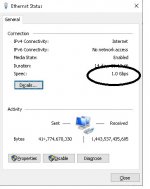
if the dinky line tester test out good and the color coding (use only one standard) then I would go to the Ethernet work card properties and check the auto negotiated speed ...

Control Panel\Network and Internet\Network Connections and I should expect to see something like this.. a ghetto DIY tool available.

if you see something else, then I would suspect the cable issue.


BTW.. they do have those through hole cat6 connectors / pass through cat6 connectors... sometimes I think might be easier on people like me... I have some. but I got about 4000 of the regular to used up first :(.
 

Attachments

  • network.jpg
    network.jpg
    36.3 KB · Views: 23
Last edited:

wyliesdiesels

Well-known member
Joined
Aug 14, 2012
Messages
20,004
Location
Modesto, CA
yea might be cable problems... both R7000 and R9000 are relative new routers and should be able to do 1gbps..

I only have a dinky line tester that test to make sure no wires are cross... and an app to remind me of the color coding of either T568A or T568B. Don't have fancy testers.

if the dinky line tester test out good and the color coding (use only one standard) then I would go to the eithernet work card properties and check the auto negotiated speed ...

Control Panel\Network and Internet\Network Connections and I should expect to see something like this.. a ghetto DIY tool available.

if you see something else, then I would suspect the cable issue.


BTW.. they do have those through hole cat6 connectors / pass through cat6 connectors... sometimes I think might be easier on people like me... I have some. but I got about 4000 of the regular to used up first :(.

since he gets 110Mbps in the house, the speed negotiation settings are not the issue
 
OP
F

Flail

Well-known member
Joined
Aug 5, 2016
Messages
412
Location
Kin folk said, “Californias the place you wanna be
Follow up to my follow up: so I carefully examined both ends of the cable with my magnifying glasses on. They both appeared to be wired as T568B standard. As the outdoors Cat6 cable is so stiff and hard to work with, I elected to cut both ends off and redo them. Triple checked my work and now I have same home and shop speed! Later, I’ll get the vom out and checK my old cable ends to make sure I don’t have a miss crimped lead. In the mean time, a hearty THANK YOU! to all that pitched in, especially WD.
 
To avoid these ads, REGISTER NOW!

wyliesdiesels

Well-known member
Joined
Aug 14, 2012
Messages
20,004
Location
Modesto, CA
Did you check to make sure all the conductors were pushed to the end? Sometimes one more conductors dont make it all the way to the end and end up misisng contact with the pins when theyre crimped down
 

east_tn_emc

Well-known member
Joined
Aug 30, 2008
Messages
426
Location
East Tennessee
Can you confirm the router inhe garage is in AP mode...to turn it into a wireless access point? The slow speed could be accounted for if you are still connecting wirelessly to the router in the house?
 

wyliesdiesels

Well-known member
Joined
Aug 14, 2012
Messages
20,004
Location
Modesto, CA
Can you confirm the router inhe garage is in AP mode...to turn it into a wireless access point? The slow speed could be accounted for if you are still connecting wirelessly to the router in the house?

not in his case. if you read previous comments, you will see that he did a speed test with the CAT6 plugged directly into his computer and got the same slow speed results.

his problem had NOTHING to do with either wireless router. He had a bad plug on one or both ends.
 

dogdog

Well-known member
Joined
Nov 15, 2011
Messages
12,711
since he gets 110Mbps in the house, the speed negotiation settings are not the issue


This have nothing to do with his Upstream internet connection speeds.

Speed negotiation is between two devices for link speed, now a days usually automatic. On PC it can be set manually.

Two device means either between his R9000 and R7000 or R9000 and his laptop/desktop Ethernet port... It's a hardware thing... Means when you insert the Cat3/5/6 cable into the device between two ports. The devices auto negotiate the best speed . I forgot what signal it sends. Your PC does the same thing when you first connects the cable. You can override it on some drivers...

Except when you connect with the PC, a ghetto way to test without a good network testers... That PC will give some what of indication of the condition of the cable... so if you know you have a gbps port on the R9000 and your laptop Ethernet is capable of gbps, it should shows 1gpbs, anything lower, there is something wrong on the cable. It is rare that you have a crapped out Ethernet device. Not that it doesn't happen.
 
Last edited:

wyliesdiesels

Well-known member
Joined
Aug 14, 2012
Messages
20,004
Location
Modesto, CA
This have nothing to do with his Upstream internet connection speeds.

Speed negotiation is between two devices for link speed, now a days usually automatic. On PC it can be set manually.

Two device means either between his R9000 and R7000 or R9000 and his laptop/desktop Ethernet port... It's a hardware thing... Means when you insert the Cat3/5/6 cable into the device between two ports. The devices auto negotiate the best speed . I forgot what signal it sends. Your PC does the same thing when you first connects the cable. You can override it on some drivers...

Except when you connect with the PC, a ghetto way to test without a good network testers... That PC will give some what of indication of the condition of the cable... so if you know you have a gbps port on the R9000 and your laptop Ethernet is capable of gbps, it should shows 1gpbs, anything lower, there is something wrong on the cable. It is rare that you have a crapped out Ethernet device. Not that it doesn't happen.

I know all of that. Been doing this for years.

One thing youre not paying attention to is if the speed negotiation is set to 100Mbps, he WONT be able to get a speed test over that(I've tested this numerous times when I used to installs for a WISP). But yet he got 110Mbps result on a speed test, so my point was its definitely NOT the link speed negotiation setting.

Did you miss the part where he said he got 110Mbps?

In regards to something being wrong with the cable, that is different than your previous theory of it being possibly related to the negotiated speed of the ethernet adapter.
 

dogdog

Well-known member
Joined
Nov 15, 2011
Messages
12,711
I know all of that. Been doing this for years.

One thing youre not paying attention to is if the speed negotiation is set to 100Mbps, he WONT be able to get a speed test over that(I've tested this numerous times when I used to installs for a WISP). But yet he got 110Mbps result on a speed test, so my point was its definitely NOT the link speed negotiation setting.

Did you miss the part where he said he got 110Mbps?

In regards to something being wrong with the cable, that is different than your previous theory of it being possibly related to the negotiated speed of the ethernet adapter.


I don't think I did.

The sequence of event OP have might clarify for you a bit between the link speed on the local network and the internet speeds he have/has

He connected his PC to the R9000 that is his Internet router and speed test at 110mbps...
OP then connected his R7000 via his Cat6 cable... now at the R7000 device end he is getting only 30mbps.
OP was asked to verify if it is problem with R7000 or the network cable. So he connected that Cat6 cable directly to the PC in his shop/shed.
He was also getting the same 30mbps. (this so far is still process of elimination)

I have asked him to check the negotiated speed of his cat6 cable. It usually is automatic and give indication of the quality of the link ( his cat 6 cable between R9000 and the shed / shop)


He got 110mbps (Internet speed) when he is connected to the R9000 that means his ISP cap him at 110mbps or his link to the internet is 110mbps..and he only gets 30mbps when his is connected to his R7000.. His 30mbps problem have nothing to do with his internet speed of 110mbps. Problem is his link speed locally between The R9000 and R7000 which is that cat6 cable he ran... so without any Fancy pansy equipment, his best troubleshooting strategy is process of elimination.

Negotiated speed between two devices is automatic, but still give you the indication of the quality of the "link" (ie cable) ... in short of fancy equipment capable of doing it like your fav $1000 fluke. The Negotiation will set the max speed the cable is capable to handle.. .it give you an indication.


or use iperf like mentioned with two computers locally.. some other DIY ghetto methods.

https://superuser.com/questions/1284196/how-to-determine-a-network-cables-maximum-speed
 
Last edited:

wyliesdiesels

Well-known member
Joined
Aug 14, 2012
Messages
20,004
Location
Modesto, CA
I don't think I did.

The sequence of event OP have might clarify for you a bit between the link speed on the local network and the internet speeds he have/has

He connected his PC to the R9000 that is his Internet router and speed test at 110mbps...
OP then connected his R7000 via his Cat6 cable... now at the R7000 device end he is getting only 30mbps.
OP was asked to verify if it is problem with R7000 or the network cable. So he connected that Cat6 cable directly to the PC in his shop/shed.
He was also getting the same 30mbps. (this so far is still process of elimination)

I have asked him to check the negotiated speed of his cat6 cable. It usually is automatic and give indication of the quality of the link ( his cat 6 cable between R9000 and the shed / shop)


He got 110mbps (Internet speed) when he is connected to the R9000 that means his ISP cap him at 110mbps or his link to the internet is 110mbps..and he only gets 30mbps when his is connected to his R7000.. His 30mbps problem have nothing to do with his internet speed of 110mbps. Problem is his link speed locally between The R9000 and R7000 which is that cat6 cable he ran... so without any Fancy pansy equipment, his best troubleshooting strategy is process of elimination.

Negotiated speed between two devices is automatic, but still give you the indication of the quality of the "link" (ie cable) ... in short of fancy equipment capable of doing it like your fav $1000 fluke. The Negotiation will set the max speed the cable is capable to handle.. .it give you an indication.


or use iperf like mentioned with two computers locally.. some other DIY ghetto methods.

https://superuser.com/questions/1284196/how-to-determine-a-network-cables-maximum-speed

If the negotiation speed is set to manual and 100MBps on the laptop, then he wouldnt get over 100MBps. Thats all Im saying
 

dogdog

Well-known member
Joined
Nov 15, 2011
Messages
12,711
If the negotiation speed is set to manual and 100MBps on the laptop, then he wouldnt get over 100MBps. Thats all Im saying

correct. but at least he wont be getting 30mbps if it is max 100mbps on a cat6 capable of 10gpbs... give you an investigative point without specialized equipment. besides that, most drivers are set to auto. hardly anyone go into the Ethernet driver and manually set them these days. of cause if his laptop / desktop is a dino. he could have been a 10mbps... card.

Basically it is something to give you a clue where to go.. at least it is based on something and not a guess is all I am saying. Of cause the gj crowd would recommend a fluke :) it's only few $$$$$.
 
OP
F

Flail

Well-known member
Joined
Aug 5, 2016
Messages
412
Location
Kin folk said, “Californias the place you wanna be
It’s kind of fun watching you guys argue about stuff I have no clue about.
I want to clarify something though. I did no specific test to measure how fast my routers/cables etc were. My test was one of those internet “Speedtest” to check my upload/download speeds. Spectrum sells me a 100mbs connection so that I am achieving the limit of this+ In both my house and shop makes me happy.
 

dogdog

Well-known member
Joined
Nov 15, 2011
Messages
12,711
It’s kind of fun watching you guys argue about stuff I have no clue about.
I want to clarify something though. I did no specific test to measure how fast my routers/cables etc were. My test was one of those internet “Speedtest” to check my upload/download speeds. Spectrum sells me a 100mbs connection so that I am achieving the limit of this+ In both my house and shop makes me happy.

I wouldn't call it argue, but an active discussion...

what you did was an internet speed test... that is a whole different can of worms.

The troubleshooting is to localize the problem since you have more than more device / link. Imagine if you have 10 device down the road and trying to troubleshoot things. :)
 

jeepxj

Well-known member
Joined
Mar 2, 2008
Messages
17,851
I wouldn't call it argue, but an active discussion...

what you did was an internet speed test... that is a whole different can of worms.

The troubleshooting is to localize the problem since you have more than more device / link. Imagine if you have 10 device down the road and trying to troubleshoot things. :)


ACTIVE discussion
 

Git

Well-known member
Joined
May 18, 2008
Messages
6,894
Location
S Cal
"Fing" is a very well known app to see what devices are connected on your local network. They now have a version for the PC and it has some basic tests it will run on your network to see if there are any problems.

You may want to take a look at it
https://www.fing.com/products/fing-desktop
 

dogdog

Well-known member
Joined
Nov 15, 2011
Messages
12,711
heated?

lively?

LOL.. here is the thing about discussions on a forum, If I were to post an idea, question, solutions, suggestions etc, I would not have expect every one to agree with me or my idea,solutions,suggestions are absolute da best and only. It's sharing these idea, solutions, suggestions we learn and move forward in live personally and as a society.

So what these have anything to do with a differences between an active lively discussion vs a heated argument? It's only an argument if your get **** hurt personally.

So... why does these passive bystanders see it as argument instead of an active lively discussion... I dunno, maybe itching to get **** hurt? in reality I really dunno why you see it as an argument and I take no offense or **** hurt for you to assume it's an argument :) .... :headscrat
 

HeartlandDan

Member
Joined
Mar 13, 2019
Messages
5
Location
Iowa
I have two routers. One for the house and one for the barn. Both are coming from a 24 ports switch network box. The box in the house has it's own user name and password and the barn has it's own. I have no troubles. Cell phone included.
 
To avoid these ads, REGISTER NOW!
Top Bottom