To avoid these ads, REGISTER NOW!

How to use the forum?

KPSquared

Well-known member
Joined
Aug 18, 2010
Messages
2,750
Location
Wetaskiwin, Alberta, Canada
Hey guys,

After being on here for way to long and now starting to get frustrated with what seems like a lack of features, can someone point me in the right direction?

Most of the other forums I'm on have a "my posts" or "my replies" section that I can go to and see any of the threads that I've replied to. Is there something like this here? I don't want to subscribe and be notified every time I type in a thread but when I log on, I'd like to be able to check up on the threads I've been posting in.

I can do this from my phone as there is a "Participated" tab in Tapatalk, but I can't seem to find anything like this here.

Any of you forum gurus help me out?
 
To avoid these ads, REGISTER NOW!

FMC

Well-known member
Joined
Aug 24, 2012
Messages
259
easiest way is to click your name and "find more posts"
 
OP
K

KPSquared

Well-known member
Joined
Aug 18, 2010
Messages
2,750
Location
Wetaskiwin, Alberta, Canada
Ya, but that is so irritating because if I've posted 10 times in one thread, it shows every individual post.

It would be nice if the threads that you posted in would be updated in a list every time they are bumped. Then if there is a thread you are following, you can go in and check whats happened since you've been there.

It's not a big deal, it's just what I'm used to from the other forums I frequent.

Ok, next question. Is there a suggestion box?

Here's a pic of the homescreen for powerstrokearmy.com Right at the top in the middle is a tab that says "My Threads/Replies" Makes following unsubscribed threads super easy.
PSAprintscreen.jpg
 
Last edited:

e-tek

Well-known member
Joined
Dec 19, 2007
Messages
10,690
Location
Saskatoon, SK
Sounds like you want to chose "Subscribe to" under "Thread Tools". As neonblack said, if u want to see what's happened in threads u've posted in, go to your user-page (click your name beside "Welcome" top right), click "Statistics", then by post. You'll also find your thread list there.

Is that what u mean?
 
OP
K

KPSquared

Well-known member
Joined
Aug 18, 2010
Messages
2,750
Location
Wetaskiwin, Alberta, Canada
Ya. I've tried all that. I just find it irritating and slow.

I don't like subscribing to threads unless I really want an update. Then I set them to email me.

If I click on the list in the stats menu, it's just a shamble of disorganization.

I'll keep digging and see if I come up with a solution that works for me. Just figured I'd ask. No biggy. Thanks for the help.

I can live with this, I just get frustrated every time I'm on the forum so I figured I'd ask just in case I missed something.
 
To avoid these ads, REGISTER NOW!

e-tek

Well-known member
Joined
Dec 19, 2007
Messages
10,690
Location
Saskatoon, SK
I probably shouldn't be giving advice.......I just found out how NOT to be subscribed to every thread I open.
 

rharman

Well-known member
Joined
Apr 22, 2012
Messages
8,983
Location
SoCal
Or, click on "User CP" in the black bar near the top. Then "View all subscribed threads" on the right.

Also, under "Settings and Options", choose "Edit Options", then set "Default Thread Subscription Mode" to auto-subscribe you to threads you post in. You can set it to NOT email/Update you and then you'll have a list to refer to.
 
OP
K

KPSquared

Well-known member
Joined
Aug 18, 2010
Messages
2,750
Location
Wetaskiwin, Alberta, Canada
Ya, I think that setting it to subscribe me to all threads I reply to will work. Then I just have to change the ones I want email notification for when I post them.

I think that will do the trick.

BTW, save one step to get to subscribed threads. . . Quick Links tab. Subscribed Threads link is near the bottom of the drop down menu.

Also for anyone who is wondering, if you want a specific thread to be subscribed with or without email notification, under Thread Tools at the top of the thread there is all the subscription options.
 

Burtonrider10022

Well-known member
Joined
Oct 20, 2012
Messages
695
Location
Chicago, IL
Hi, I think this is the right place for getting some suggestion about "how to use the forum" Actually I just start to use such forum that's why I don't know so much about the setting of forum, so I want to know how to share an image here ................
I hope I'll learn many thing more from here with the help of you people so thanks in advance.

There are a few ways to add an image to this, and many other forums, but it will depend on the image you want to add, and it's location.


For a picture stored on your computer:

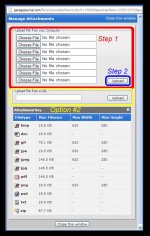
A. The easiest way! This way will work for smaller/average size pictures (if the picture is too large, go to option B.) To add a picture from your computer, you have to "go advanced" when making a reply. Below the typing area (text box) is a little button that says "Manage Attachments" (Red Box in the top picture). From here, you can click "Choose File" (Red Box/Step #1 in the bottom picture) and then find & select the image from your computer hard drive. After you've found the picture you want, click on it and then chose "Open" or you can just double-click on the picture and it should select it automatically. After you have "Open"ed all of the images you want, click the "Upload" button (Blue Box/Step #2 in the bottom picture) and the pictures should now be attached. Close the pop-up window and finish typing your message/post. Then, all you need to do is click "Submit Reply" and your photos should be attached!

B. If the picture is too large, be it file/data size (too many megabytes/kilobytes/gigabytes) or the actual picture is too large (more than 620x280 pixels) you have two options:

Option B-1 is to right-click the photo and select "Open With" and choose Microsoft Paint (or you can just open Microsoft Paint and then import the picture through the "File" -> "Open" menu). Once in MS Paint, click "Image" and then select "Stretch/Skew" and change the picture size down to a lower percentage. Make sure you "Save As" and save the picture as a DIFFERENT name as the original, if the picture is important, because once saved shrunken, it cannot be undone and still be of good quality. Once you get the picture the correct size, go back up to Option A and attach the image to the forum.

Option B-2 is more complicated, but can be useful in the future. You will need to sign up for a free service like Photobucket. Then you upload your desired picture(s) to your Photobucket account. There will be an option near the picture (or the little 'gear' symbol in library view) for the pictures "links". Simply copy the link that has the IMG tags: and paste it in your post's text box!


For images you find on the web on other websites, you again have two options.

A. Right click and "Save As" the image, then go back to the above instructions for uploading off your computer.

B. Right click the picture and select "Copy Image URL". Then, come back to the forum and go to "Manage Attachments" again, and then "Upload File from URL" (Yellow box/Option #2 in the bottom picture). Paste the URL of the picture in this box and then "Upload". The picture should be attached!
Also, you can just click the little 'picture' box with the mountains (Blue arrow in the top picture) and then paste the URL from the picture into the pop-up box, making sure to delete the "http..." that was already in the pop-up box. When you press ok it should add the link with the [IMG] tags around it to your text box. Simply finish your typing and click "Submit Reply" without deleting that link and the picture should be in your post!

[IMG]http://garagejournal.com/forum/attachment.php?attachmentid=225328&stc=1&d=1355317212

attachment.php


If you have any other questions, just ask! If your computer is newer or older than mine, or you use a different browser some of the menu names may be different. If so, again, just ask.
 

Attachments

  • Pictures on a forum.JPG
    Pictures on a forum.JPG
    61.4 KB · Views: 23
  • Pictures on a forum - Uploading.JPG
    Pictures on a forum - Uploading.JPG
    74 KB · Views: 23
Last edited:

CNGsaves

Well-known member
Joined
Sep 26, 2012
Messages
13,233
Location
KS and OK
A quick way I've found to locate items I've posted to is Advanced Search and just type in My Username. All the posts I've ever made pop up and are Bold if something new has happened with that post.
 
To avoid these ads, REGISTER NOW!
Top Bottom