Before you mess around make binary images of both cards.
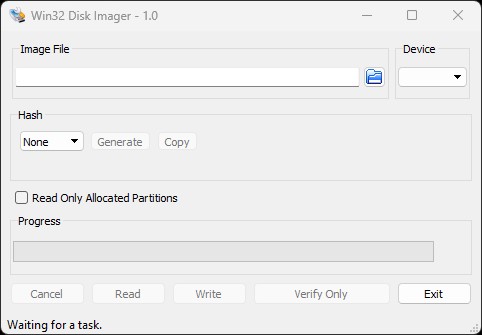
I use Win32 Disk Imager to make images of compact flash and SD cards and whatnot. It's very very basic software.
Download Win32 Disk Imager a Fast, Secure & Reliable tool to Write Windows 10 or Windows 11 ISO Image to the Removable drive eg. Pendrive.
win32diskimager.org
Disclaimer; This is how I make backup images of combat flash SD Etc.
If you blow up your computer or cause some other mayhem I'm not responsible.
Win 32 disk imager is free and very basic. The interface is really spartan. It was written to do one thing. It does that and nothing else.

You need the compact flash SD ... plugged into an adapter before you open the software. If you do not plug in the card before opening the application the "Device" radio box will not list your flash drive letter.
The easiest thing to do is make a "CF Images" directory in the root directory, so the directory will be C:\CF Images\ ... but do as you wish.
Make sure your compact flash drive letter is selected in the "Device" radio box.
The Compact flash slot in my adapter shows up as drive I:\
Click on the blue file folder next to the Image File radio box and navigate to your CF Images directory, type the file name for your Compact Flash image in the File Name box at the bottom of the window, then click OPEN.
NOTE ***
This software will not append a file extension. I use .IMG to tell me it's a binary flash or floppy image.
I get fairly descriptive with the filename. Tool name SW rev and serial number with .IMG extension.
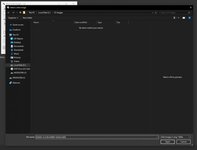
You'll get something similar to this window with your path & filename in the Image File box.

MAKE SURE the radio box next to "Read Only Allocated Partitions" is NOT ticked. You want the software to make a complete RAW image of all the 1s & 0s on the whole flash card.
From here, Click "Read" and wait for the green progress bar to crawl across.
If all goes well, you'll get a popup that says "Read Successful" with an OK button.
If you are successful you'll also see an image with your selected filename in your CF Images directory. The file size will be the same as the entire used and unused capacity of the compact flash card you just imaged.
My MODIS CF card image is 500,472 KB. I can write it on a 512mb or larger flash card. I have a stack of SanDisk Type I & Type II 512mb compact flash cards I used to use in data collection hardware I maintained. You can still buy them online.
If I write this image to an 800mb CF card it'll appear to the OS as an exact copy of the 512mb card I imaged with only 512mb of space. Same goes for 1g or 2g cards.
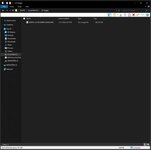
"Verify Only" will be ungrayed now, so click that. It'll read the flash and compare it to the image just written to your hard drive.
If all goes well, you'll get another popup that says "Verify Successful" with an OK button. This means the flash card matches the binary image file.
Click on the "Safely Remove" in your system tray and unmount the compact flash then remove it from your card reader and put it in a safe place.
You can now burn cards using that image file while the original CF card is in some safe location and the scan tool will not be able to tell the difference.