I am by no means an expert on posing pictures and a hosting service is used called TinyPic.com and it is a free service.
Please forgive me if this is a little basic:
Once you have the site opened (TinyPic) along with Garage Journal, click on the Choose File button (TinyPic), and then, it takes you to your computer’s folders. Then go to your “pictures” folder and double click on the picture you want to upload. You will see the file name in the top dialog box. Then, there are 3 radio buttons next; one for Pictures, one for Video, one for URL. Just be sure to click on the pictures button if it shows something different. It should be check because this is (should be) the default setting. The next dialog box is the resizing feature. If you want the big pictures, just leave this as it is, and if you want a little smaller picture, click on the little arrow on the right (drop down menu) and click on Message Board (640x480). This is a pretty good sized picture and allows for better formatting while typing out how you did your build. After all this, click on the Upload button.
TinyPic will many times ask you to type in the word or phrase to gain access to the upload and once this has been completed and typed in correctly, click on the Upload Now button and your picture will be ready to be “copy and pasted.”
Click on the IMG Code for Forums and Message Boards. (Once you have clicked on this, the code will now be highlighted). Then from your key board, press the Control Key (ctrl) and the letter c. This will copy the information and allow it to be pasted into the body of your thread. To paste, (click in the body of your thread and at the point of where you want the picture to be placed) press the Control Key and the letter v, and there, you will see the code pasted into the body of your thread. (Assuming you’re a PC user, if Mac/Apple, it is a different key stroke which is command c to copy and command v to paste.)
To see the picture (the actual picture) click the “Preview Post” button at the bottom of the GJ window and then you will see the picture you just selected to add to your post. This all takes a few steps, however, once you get the hang of it, the process is pretty fast.
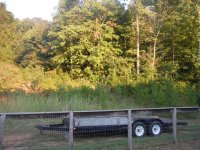
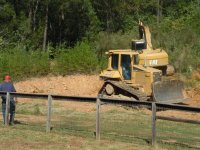
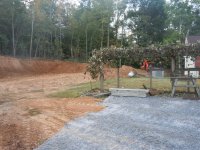
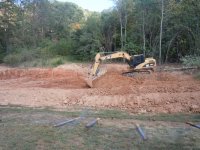
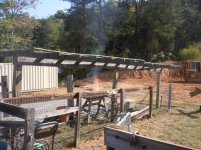
The following picture is from the 640x480 size choice:
You can do this. It is easy.
Looking forward to seeing your project!


























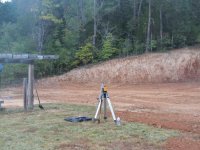


 About four or five weeks to get a delivery.