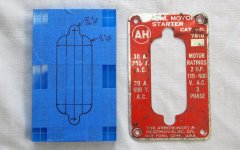
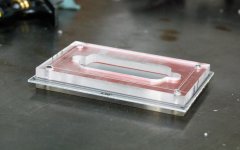
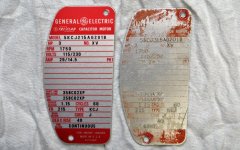
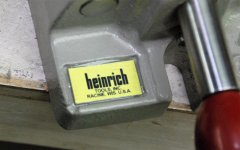
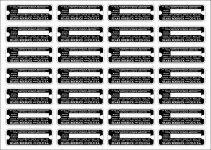
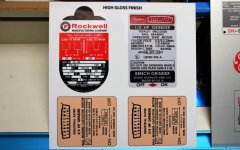
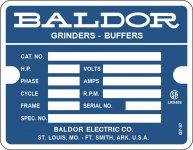
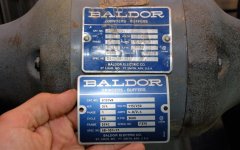
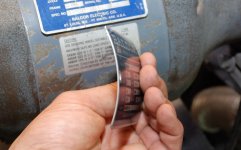
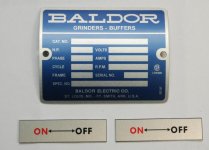
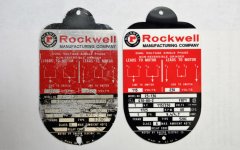
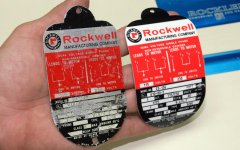
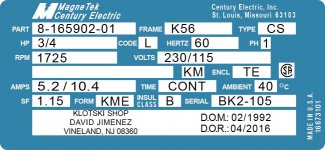
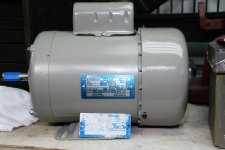
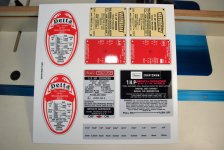
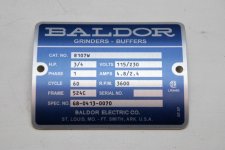
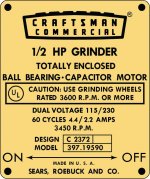
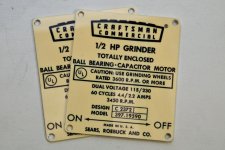
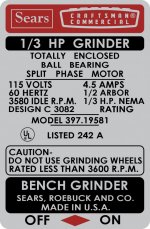
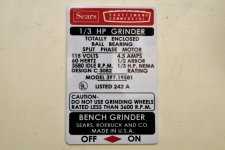
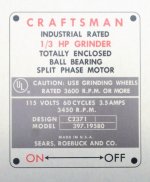
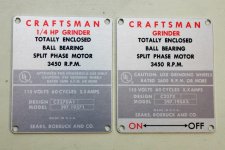
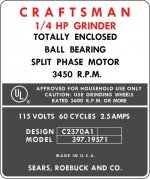
Thank you. There are two types of print surfaces they offer, each with several finishes, either Satin/Matte or Gloss/Glossy/Mid-Gloss.

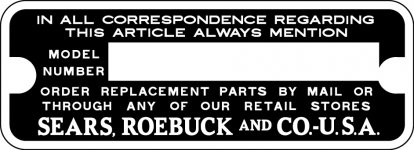
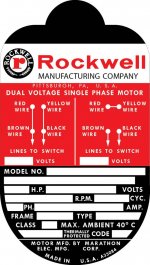
First, yes all the jpg sent had white as the background. I know there's a way to have all "clear" backgrounds in Illustrator as a hatch pattern, however I haven't figured that out nor have I had a need for it to date. Besides the clear hatch pattern affect will only work if the file is sent in vector format, not jpg. At this present time Bayphoto does not accept vector format file.
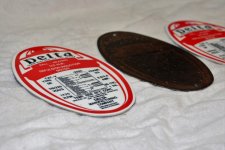
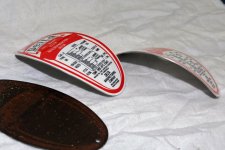
The first Print Surface in either Gloss, Mid-Gloss or Satin. All white colors including white background will show up as white. The rest of the colors will show up vibrant.
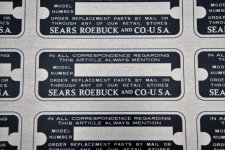
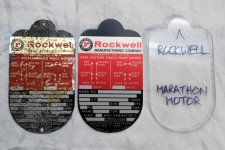
The second choice of Print Surface is the Sheer in either Glossy or Matte. This style will take all white colors, regardless of background, objects or text, and make them clear. Additionally all other colors won't be as vibrant as the first style and will as they describe "an luminescent look" as some of the aluminum brush texture will show through the colors.
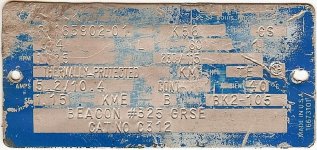
The second style is the one you want to choose if your original badge has aluminum showing through in the border, background, any objects, data fields, etc.. If your badge has no aluminum showing through, then choose the first style.
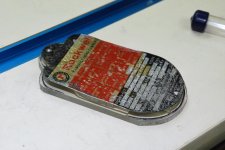
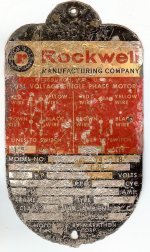
Just remember these are
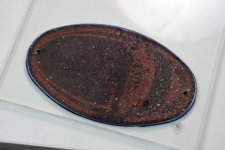
reproductions of damaged or missing badges to complete your rebuild, not
restoration badges for a museum piece. However, with that said, I thrive to accurately reproduce the badges as original as I can. That includes any artwork, outline, shape, background, and even font style. This is where most of the work goes into these reproductions, looo.......ooong hours behind the computer.
One more thing, there's a trick to uploading your jpg so it'll fit properly onto the frame size you choose. When you get to that point, please post. Anything else, ask. Hope this helps-David